The VensureONE Mobile App is available for Apple (App Store) and Android devices (Google Play).
Download the appropriate app for your device:
Set PIN and Scan Biometric
(if desired)
If desired, you can set up your PIN and/or biometrics.
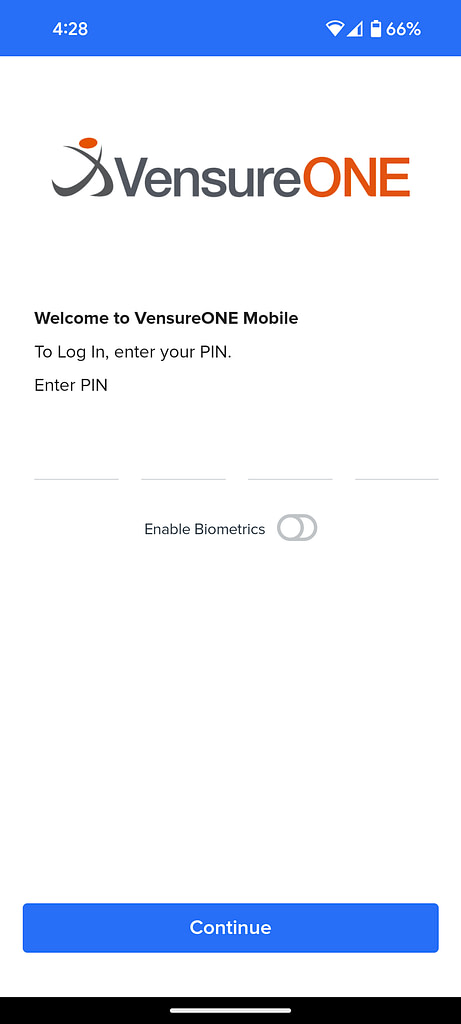
Upon first download, you will be taken to a PIN setup page.
Create and confirm your 4-digit PIN code to proceed.
On the next page, you’ll have the option to continue just with your PIN or set up your biometrics. Biometrics are strongly recommended.
To enable biotmetrics, tap the biometrics toggle and validate with your phone’s biometrics (FaceID or Fingerprint Sensor).
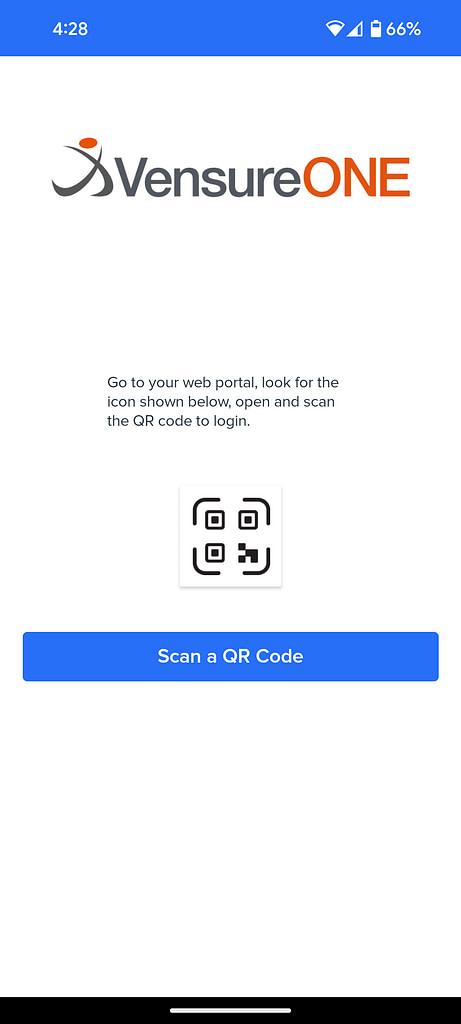
Once you’ve validated with your PIN or biometrics, you will be taken to a new screen, Scan QR Code.
STEP 2
Locate Your Access Code
Log into your web portal as you normally would on a desktop or mobile browser.
Go to the My Tools dropdown at the top right of the page and you will see a QR Code.
Set Up the App
Open the app and set up access by using the Scan QR Code button.
Grant camera access to the VensureONE mobile app and scan the QR code on your web portal.
VensureONE mobile app will sign you into your account.